Create Lists
The digital library allows you to create content lists that can be useful for keeping content organized and easily accessible.
You can create as many lists as you want in 2 formats: “Private List” (for personal use) and “Public List” (visible to all users of the library and can be shared via link).
There are two ways to create lists to organize content.
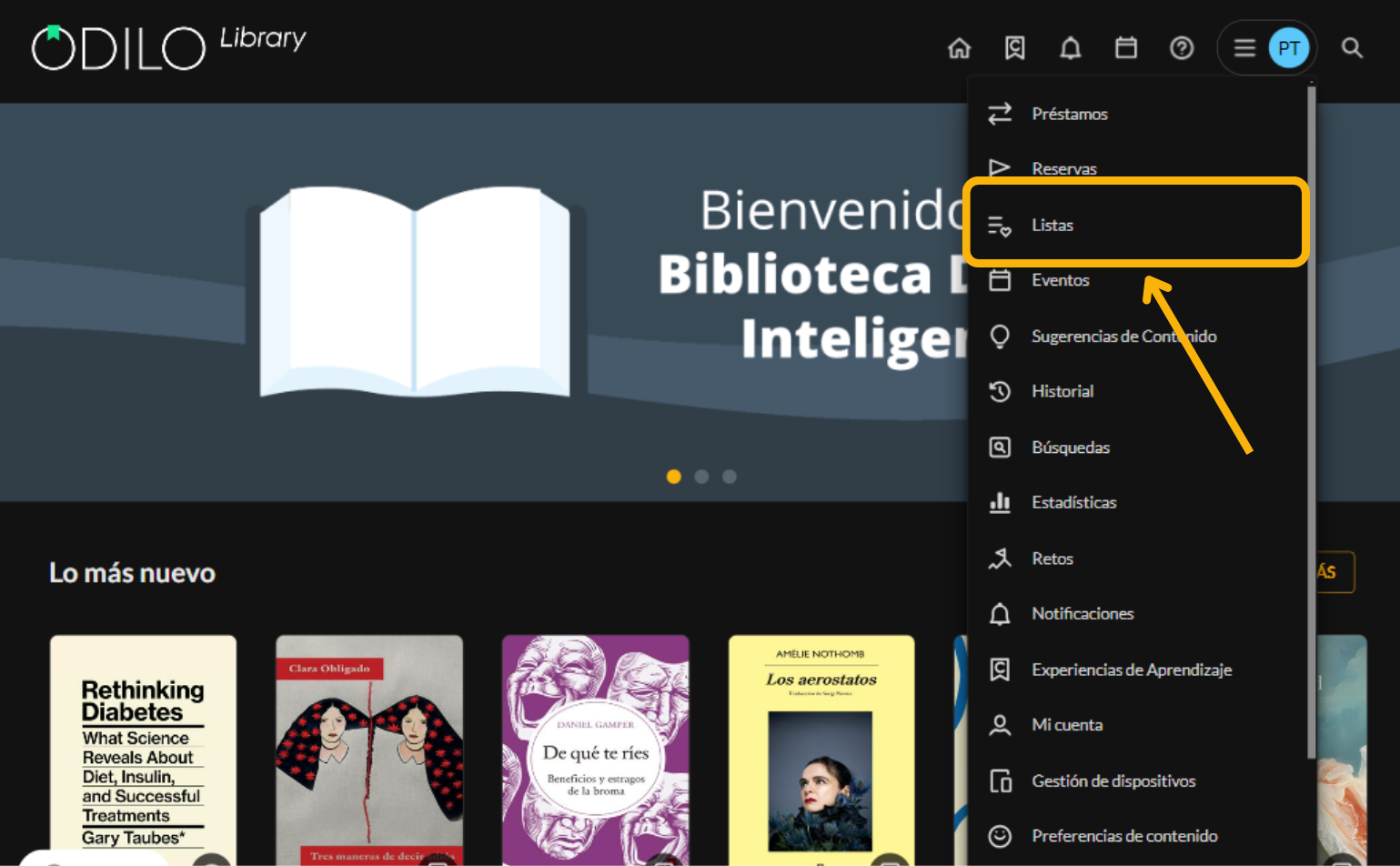
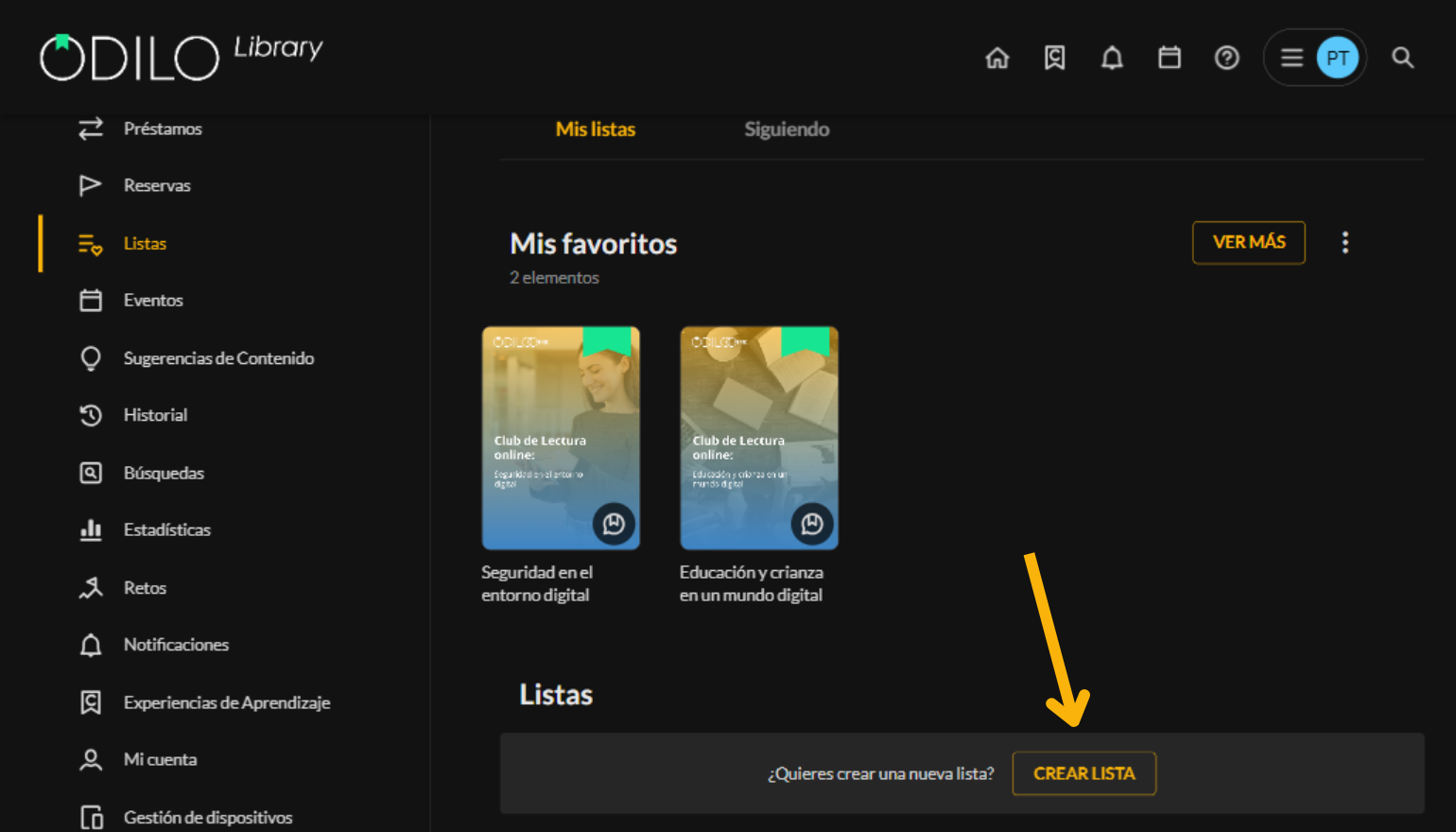
From Your User Area: Click on “Create List” in the lists section and add the content you wish.
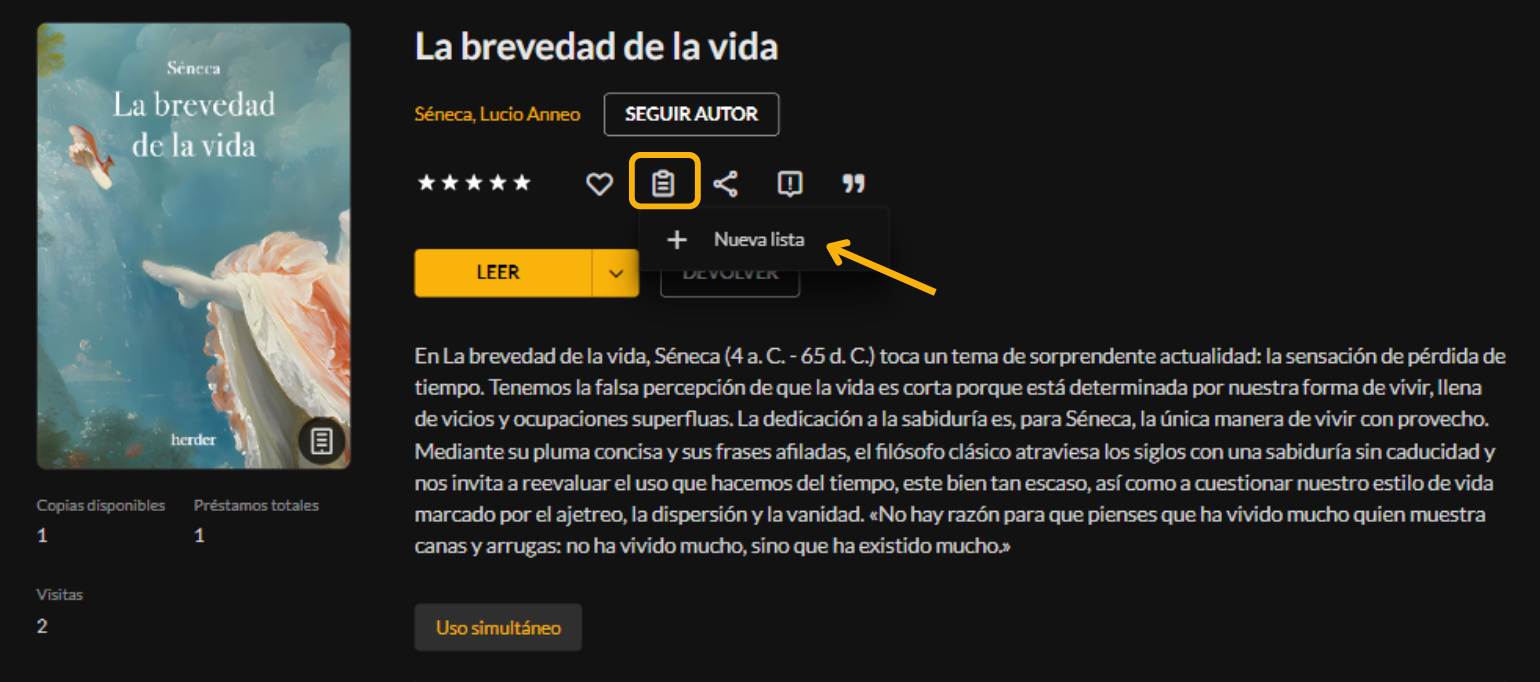
From a Content Item: enter the information area of a resource, then click on the list icon and select the option “New List”.
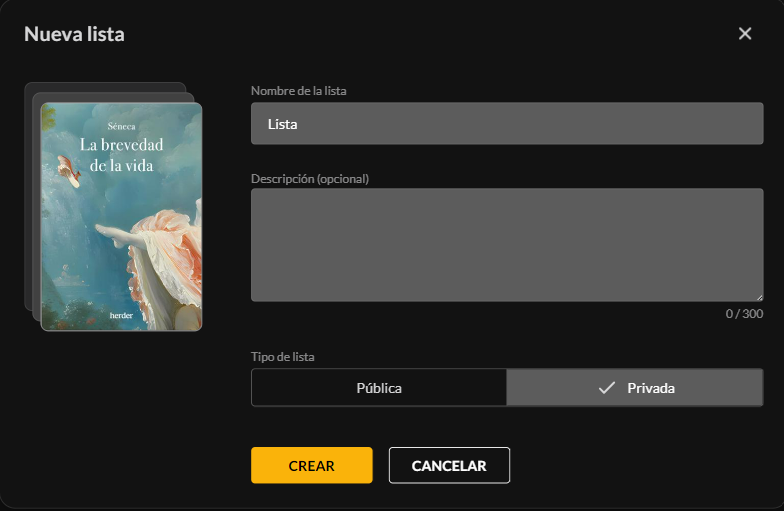
Next, select the option you want, “Private List” (only visible to your user) or “Public List” (visible to other users) and fill in the title and description fields (optional). Click on “Add” and your list is created with this first resource added.
To add other content to your list, you must access the information area of the new resource you want to include, click on the “List” icon and select the name of the list you wish to add it to. The list will be updated automatically.
Share Lists
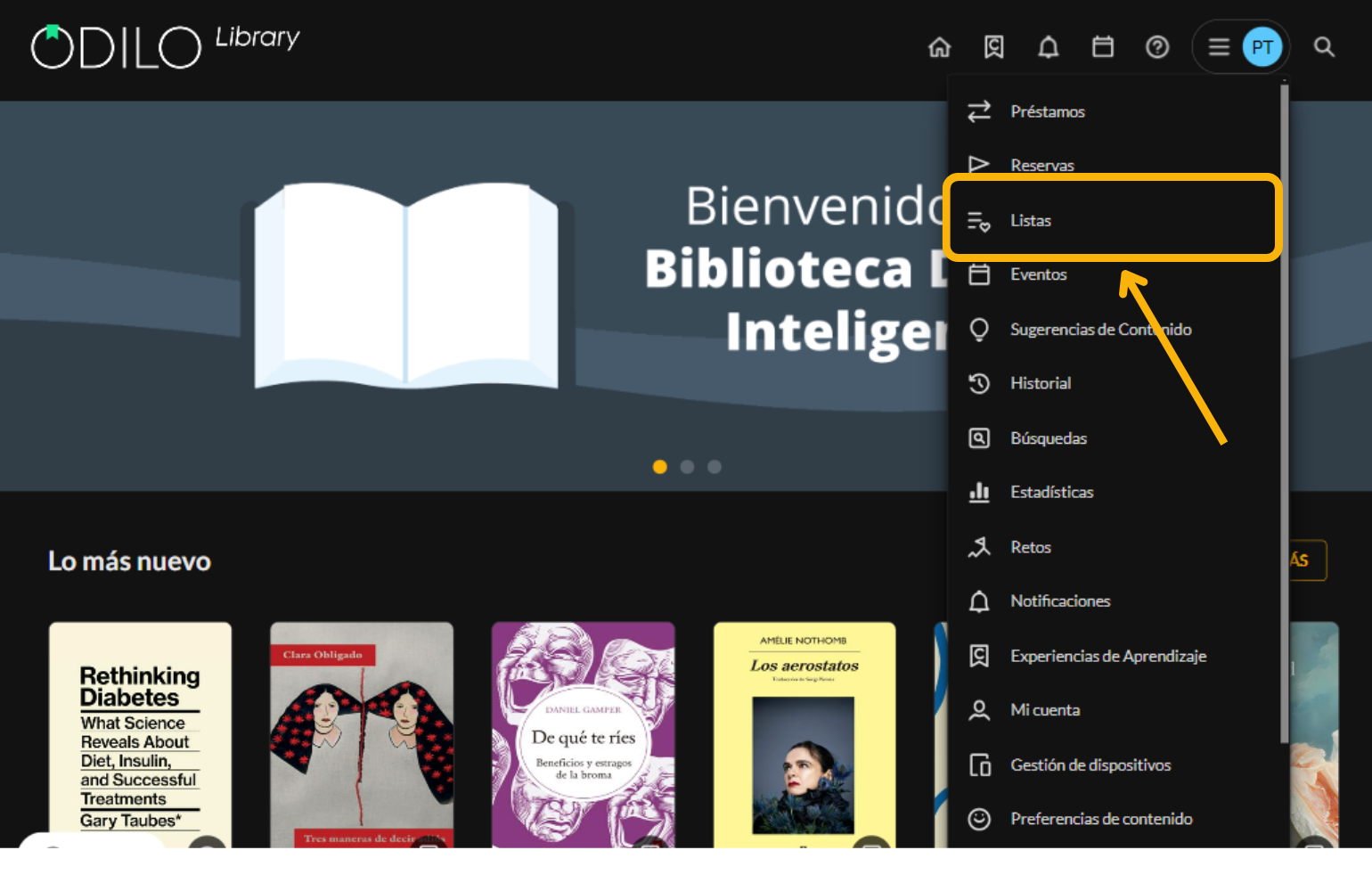
To find your created lists, go to the user area (colored circle with your initials on the homepage) and select the “Lists” section.
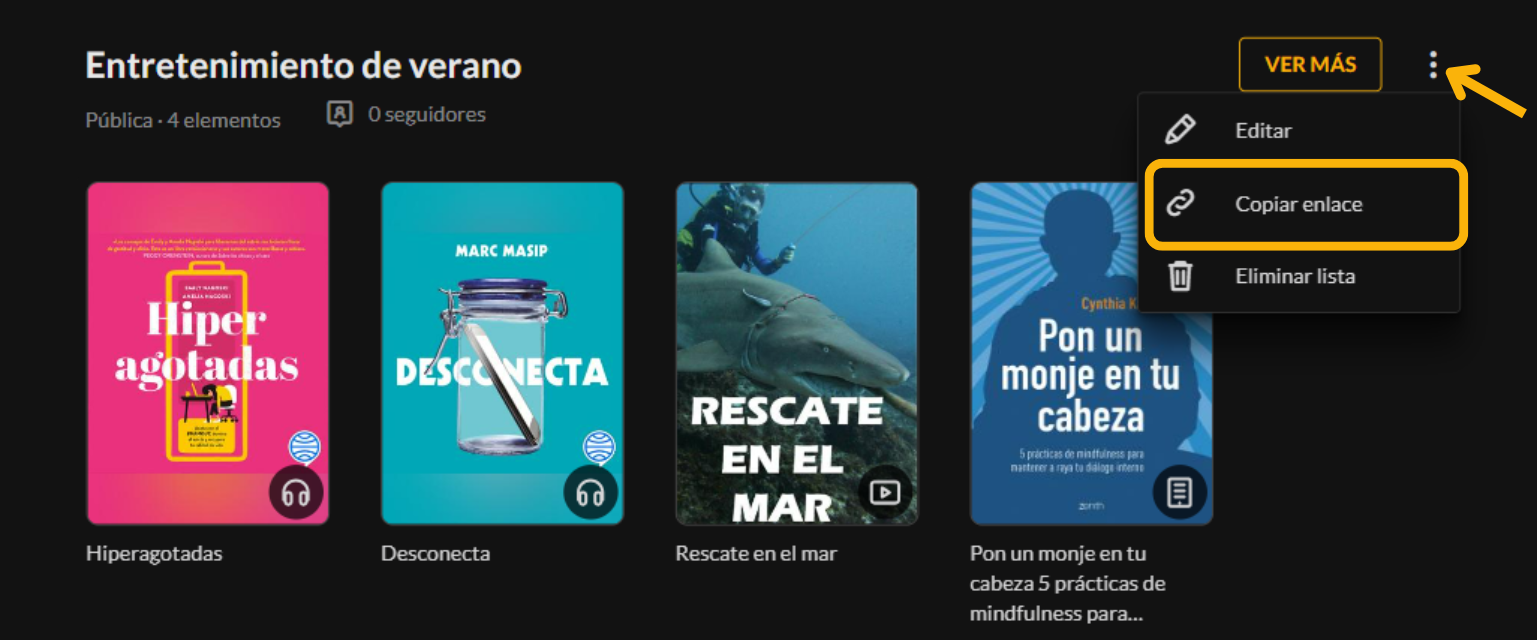
If you have created a public list and want to share it, click on the three dots on the right side of it, and select “Copy Link”, you can now paste your link and share it with whoever you want.
Follow Lists
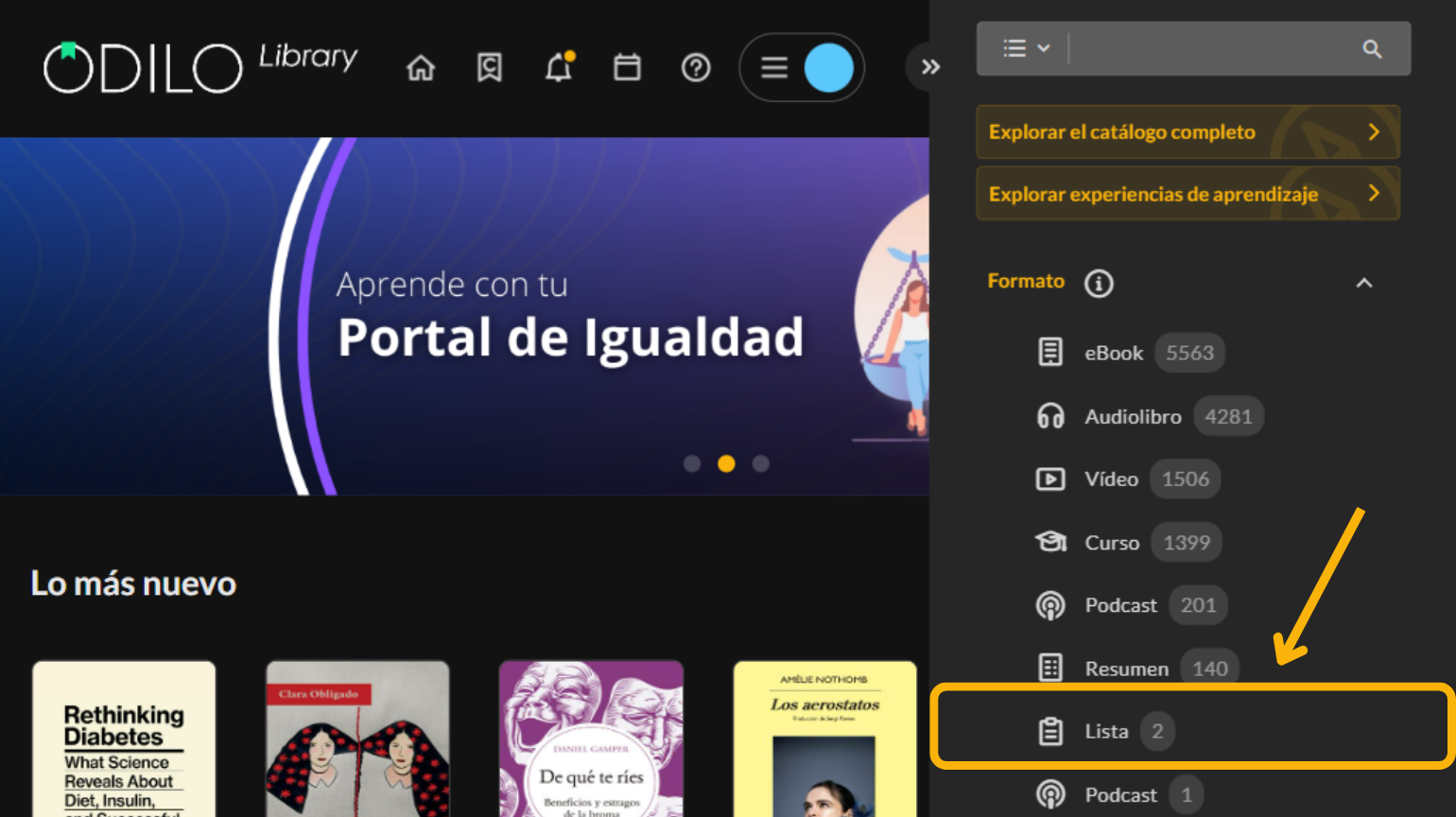
Explore the available public lists in your catalog by selecting the “List” format from the search bar. This way you can review all existing lists.
If you want to follow a content list created by another user, when accessing the link of any public list click on the “Follow” button at the top right.
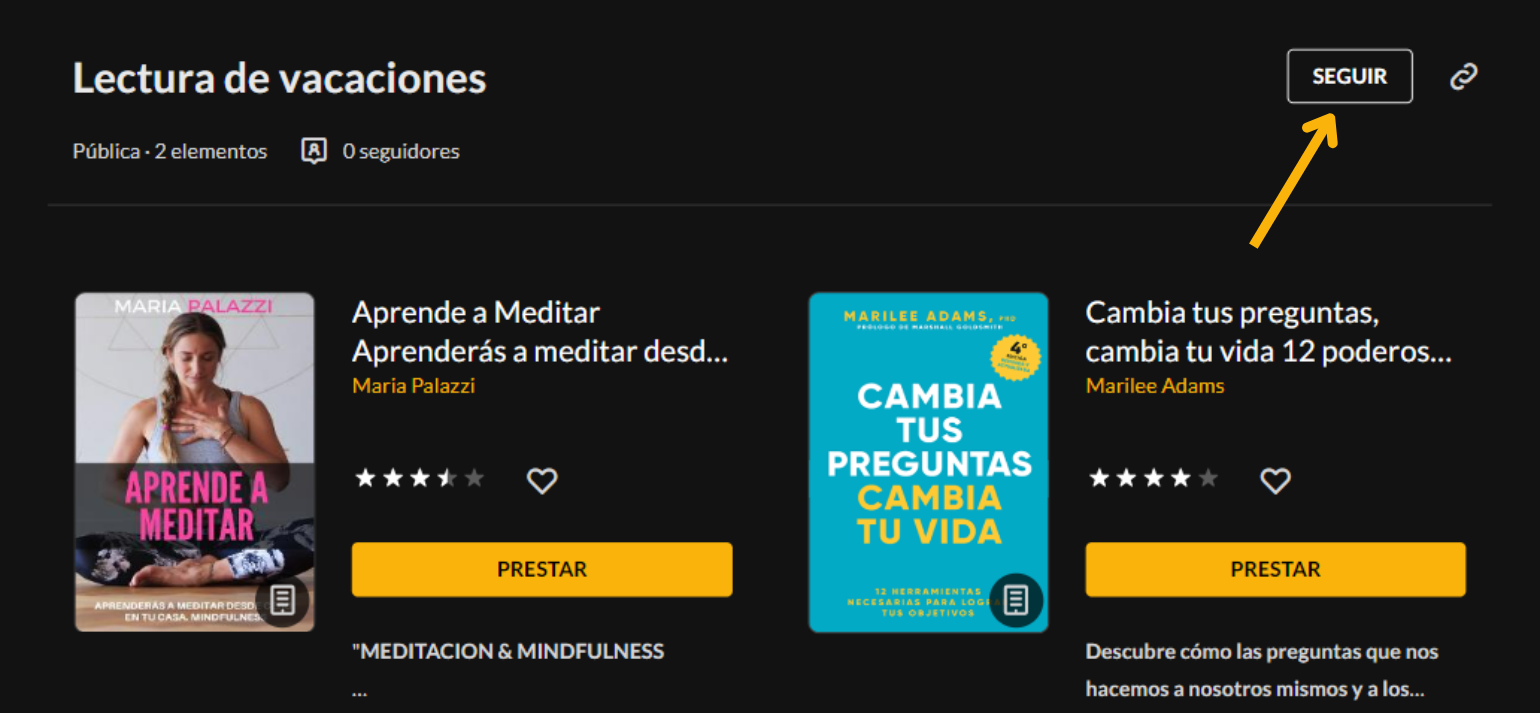
This action will keep you fully informed through notifications that will arrive whenever the author of the list adds new content to it.
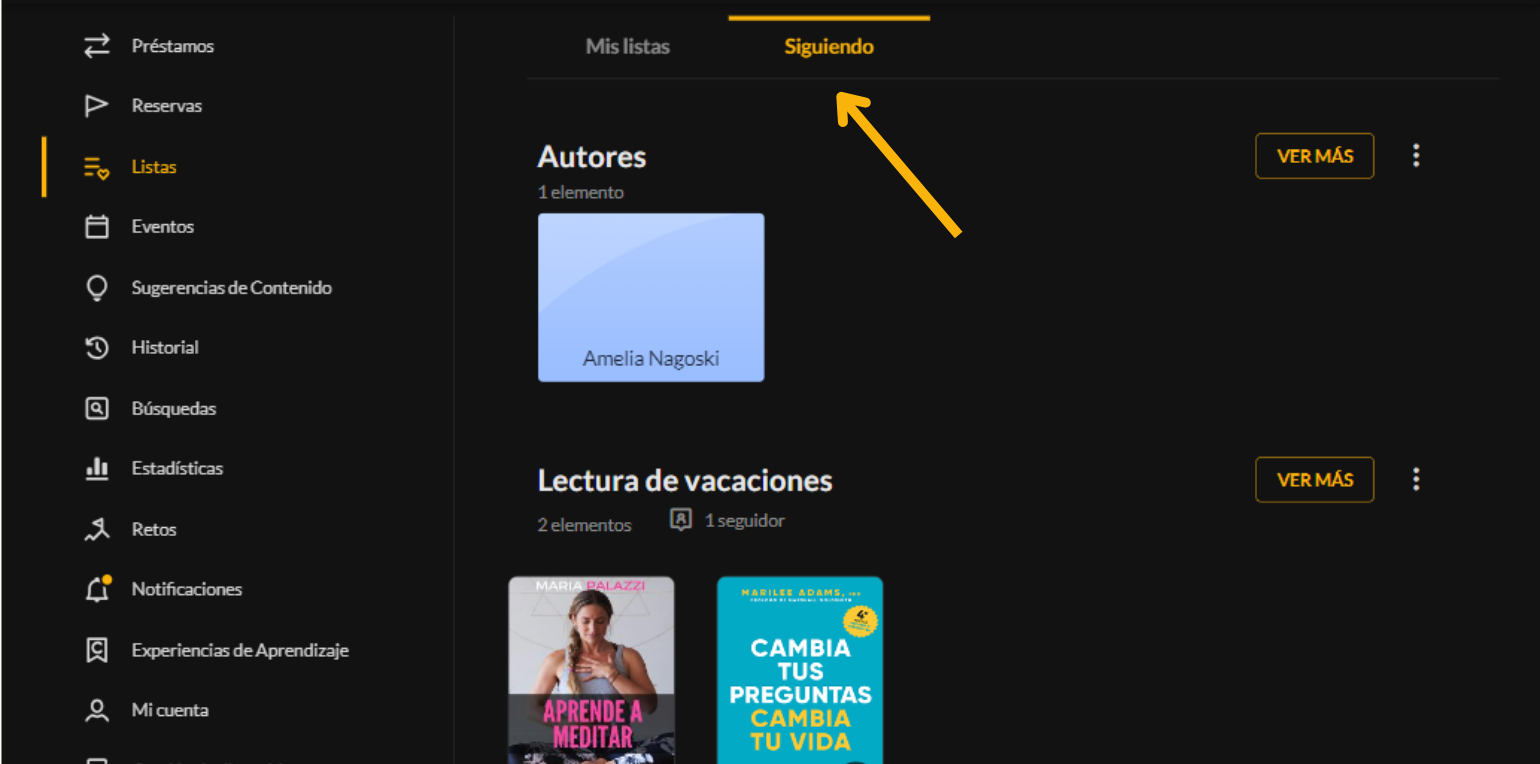
You can find the lists you follow from the “Following” tab within the “Lists” section of your user area.
https://help.odilo.io/libraries/interaccion-con-contenidos/listas-de-contenidos/
Comments
0 comments
Article is closed for comments.